
When Calypso hands a chat to a person
When a chat needs a person, Calypso flags it, says why and alerts your team. You hand it back with Choose who replies.
You don’t set anything up for this. Calypso decides on its own when to hand a chat to your team, and your team decides what happens next.
Why Calypso hands a chat to your team#
Calypso decides, chat by chat. There’s no fixed list of reasons. Calypso writes its own, and VENUZ shows it to you as it is. The alert starts with the kind of reason, followed by the fan and the creator:
- Calypso needs your help: the fan is asking for something Calypso can’t handle on its own.
- Urgent: a fan may be in crisis
- Calypso flagged a possible minor
- Calypso flagged a threat to the creator
VENUZ also hands a chat to your team on its own when a fan reverses a payment. That alert starts with A fan made a refund.
What happens to the chat#
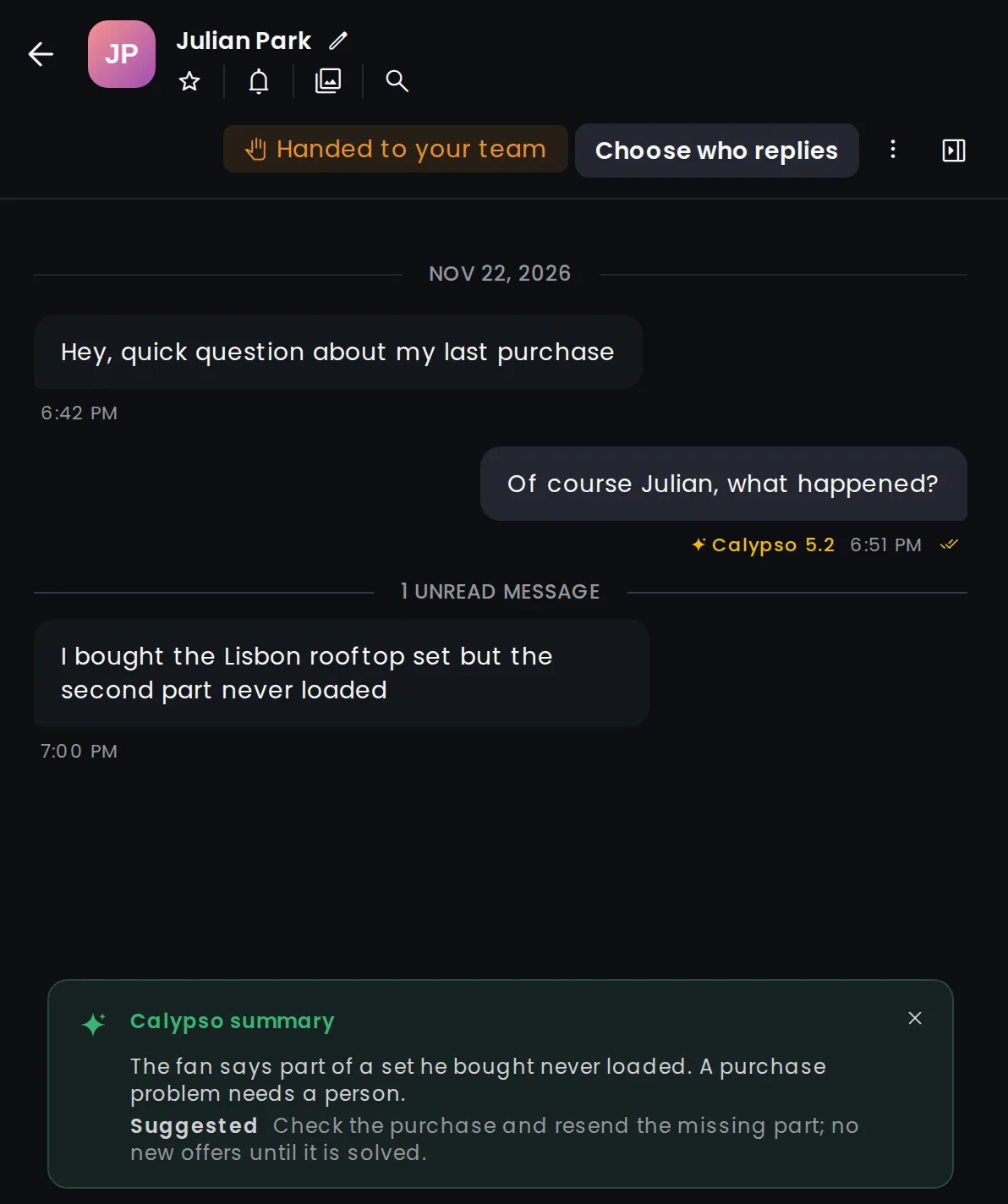
Handing a chat to your team can pause Calypso in it. Then Calypso stops replying there until someone on your team resolves it. The chat shows Handed to your team, and the message box is yours.
Other times it doesn’t pause. Calypso only alerts you and keeps replying until you take over.
The end of the alert tells you which one it is: Calypso stopped replying in this chat. or Calypso keeps replying until you take over.
How you’re alerted#
The alert arrives in the Notifications bell at the top of VENUZ. It also goes to Telegram for each teammate who linked their Telegram, can see that creator and keeps Calypso needs a human on in their notification settings, and to your team’s Telegram groups that receive it. It isn’t sent by email.
If Calypso hands the same chat to your team again within 24 hours and nobody has stepped in, VENUZ doesn’t alert you again, unless the new reason is more serious or starts pausing Calypso.
Where you find chats handed to your team#
- Inbox: open Master and pick the Handed to your team chip. Each chat there is marked Handed to your team. See Work the chats that need a human.
- Dashboard: when chats are waiting, the Handed to your team row in Action items shows how many and how long the oldest has waited. Click it to open them in Master.
When Calypso isn’t paused, you only get the alert. Those chats aren’t marked Handed to your team and don’t appear in these lists.
When you open a chat handed to your team in Master, the Calypso summary card above the message box shows Calypso’s reason and, if it left one, a Suggested next step. You can close the card while you work. Closing it doesn’t resolve anything, and it’s back the next time you open the chat. More on this view in Use the Master Inbox across all creators.
How you hand the chat back#
- Reply to the fan yourself if you need to.
- Click Choose who replies at the top of the chat.
- Choose Resume Calypso to let Calypso reply again, or Take over to keep the chat while Calypso stays paused.
- Click Resolve.
With Resume Calypso, the creator’s filter still applies. If it sends this fan to your team, the chat stays with your team and VENUZ tells you so. See Send certain fans to your team (Routing). If you kept the chat, hand it back later with Resume Calypso, as with any chat you took over.
You need the permissions to send messages and to take over from Calypso. Without them, Choose who replies doesn’t show. Action items shows chats handed to your team only to roles that can see the Dashboard figures and Calypso’s status.
Calypso can still hold back in that chat for a while on its own side. The chat then shows Safety block and a note above the message box. There’s no button to lift it, and your team can still reply.
Where to go next
Couldn’t send that. Try again.
Still stuck?
Write to us and a person from the VENUZ team answers. Tell us the creator and what you were trying to do.