
Set up your first creator
Add a creator, link her OnlyFans account, teach Calypso who she is and turn it on. Then start each day on the Dashboard.
Before you start
- Computer
- Windows or Mac. You link her account with the VENUZ login app.
- Who can do this
- Owners and Admins, or anyone with the Add creators, Connect creators and Create creator links permissions.
- Her login
- The creator’s OnlyFans login. If OnlyFans asks for a Face ID check, she does it on her phone with the Venuz Verify app.
Add her and link her account#
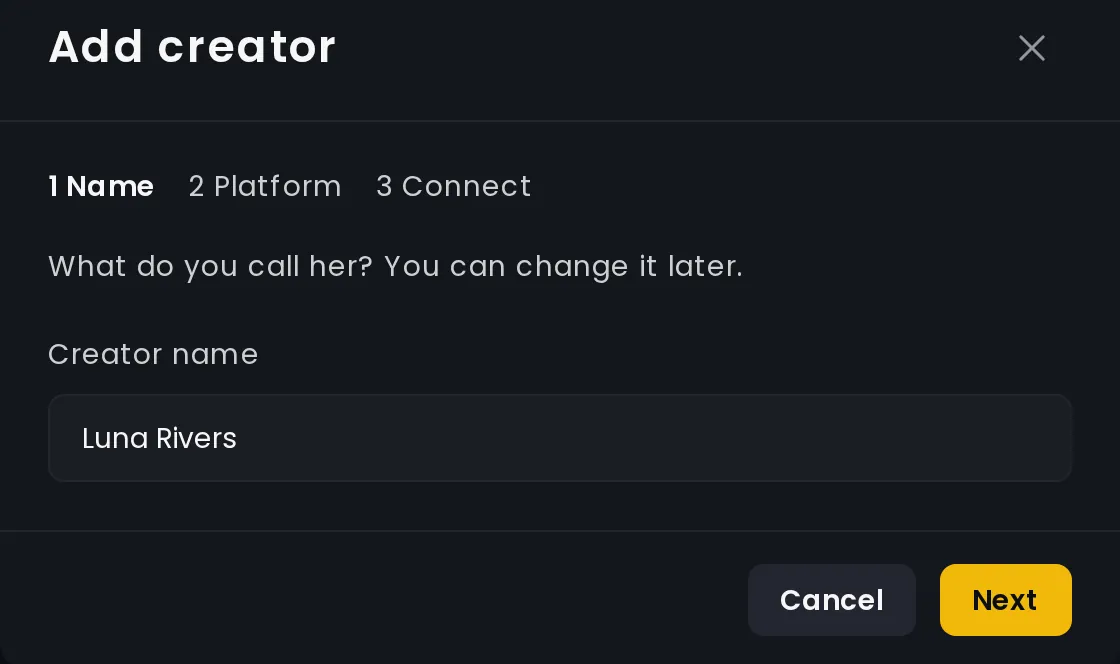
- Open Creators and click Add creator.
- Type her name under Creator name.It’s the name your team sees in VENUZ. It doesn’t change anything on OnlyFans.
- Click Next, then click OnlyFans.VENUZ saves her to your creators and asks who will log in.
- Choose I’ll log in now.Her page opens with the Link OnlyFans account window.
- Click Open login app and log in to her OnlyFans account there.Her password never leaves your device.
The Link OnlyFans account window lets you download it for Windows or macOS. You install it once and it connects all your creators.
Click Do it later in the last step. She’s saved without a link, and you can link her later from her page with Link OnlyFans account.
Teach Calypso who she is#
Her page has two tabs. The more you fill in, the more Calypso’s messages sound like her. For the full walkthrough, see Set up a creator so Calypso sounds like her.
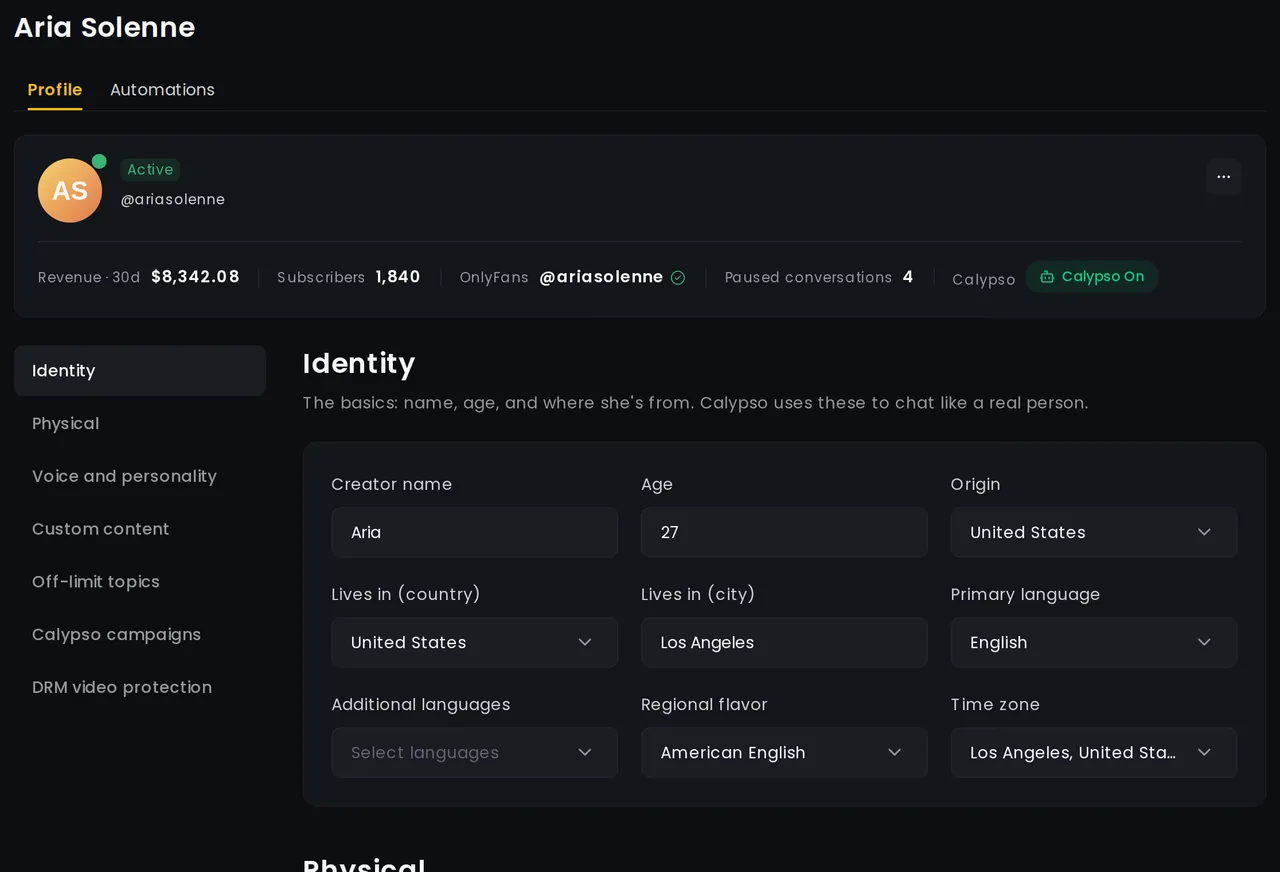
Profile
What Calypso knows about her.
- Identity, Physical and Voice and personality
- Custom content: her prices for made-to-order requests
- Off-limit topics and Calypso campaigns
Automations
How Calypso works with her fans.
- Filter: which fans Calypso handles and which go to your team
- Poke: lets Calypso reach out to fans who have gone quiet
- Welcome message: greets her new fans
Turn Calypso on#
Calypso only starts when you turn it on for that creator, with the Calypso button on her page. The button tells you where she stands.
| The button says | What to do |
|---|---|
| Set up creator, Add content, Add payment method, Add reference photos to turn on Calypso | That step is still missing. Click the button to go and fix it. |
| Calypso Off | Everything is in place. Click it, then click Activate in the Activate Calypso window. |
| Calypso On | Calypso is on for her. The same button turns it off, as long as her account is Connected. |
The first time you turn Calypso on for a creator, her Calypso Library needs enough sets ready to sell. Checklist: before Calypso starts says how many.
Your agency’s own commission rate is shown in Billing & usage.
Start each day on the Dashboard#
Action items lists what needs your team, such as Handed to your team (chats Calypso handed to your team), Overdue customs and Creators not connected. Each row opens its page. When there’s nothing to do, it says Nothing waiting.
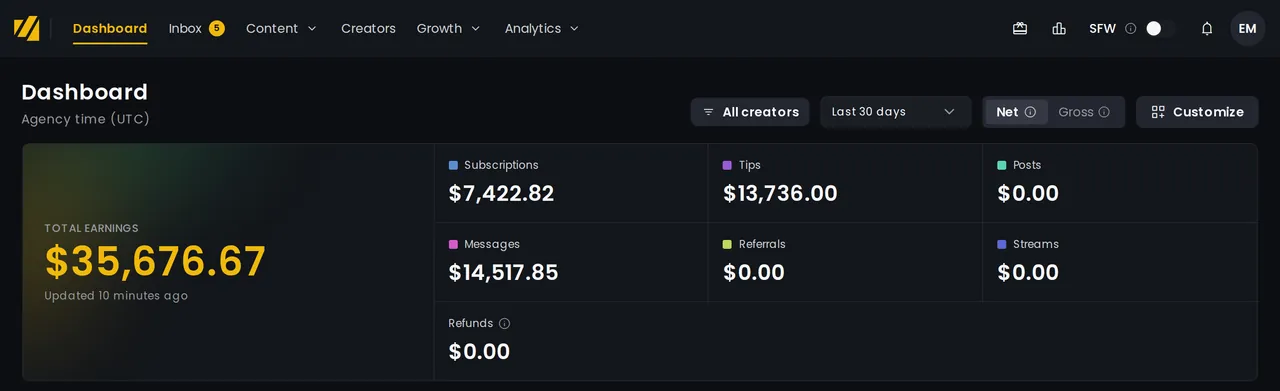
Chats live in the Inbox. Your team can take over a chat from Calypso and hand it back when they’re done.
While you’re new, a page you haven’t toured yet shows a Tour button that walks you through it. You can replay the tours in Help & legal → Product tours.
Where to go next
Couldn’t send that. Try again.
Still stuck?
Write to us and a person from the VENUZ team answers. Tell us the creator and what you were trying to do.