
Create a fan list by hand
Make a manual list in Fans list and pick the fans who go in it.
Before you start
- Who can do this
- Owners and Admins, or anyone with the Manage lists permission
- Works on
- A computer or a tablet
Start a manual list#
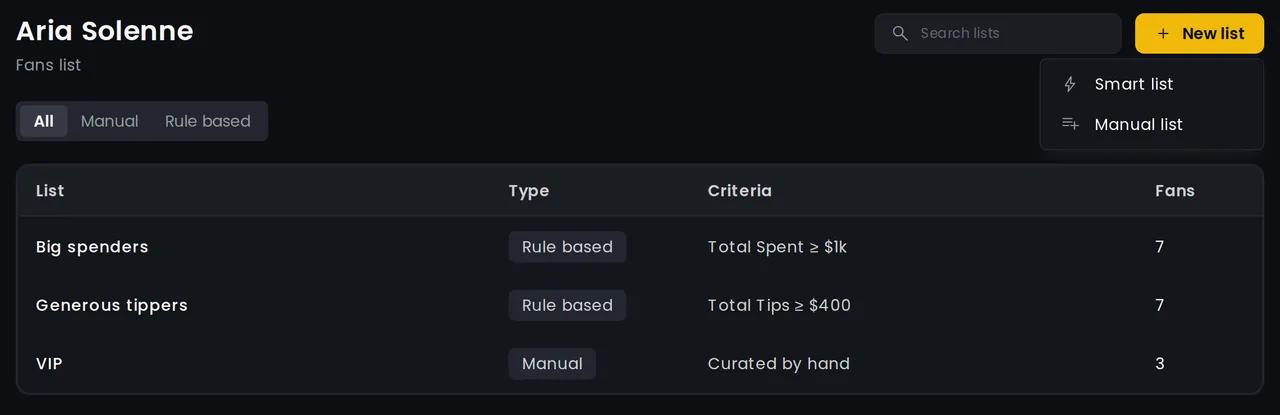
- In the top bar, open Growth → Fans list.
- Pick the creator in the list on the left.
- Click New list.
- Click Manual list.
Create the list#
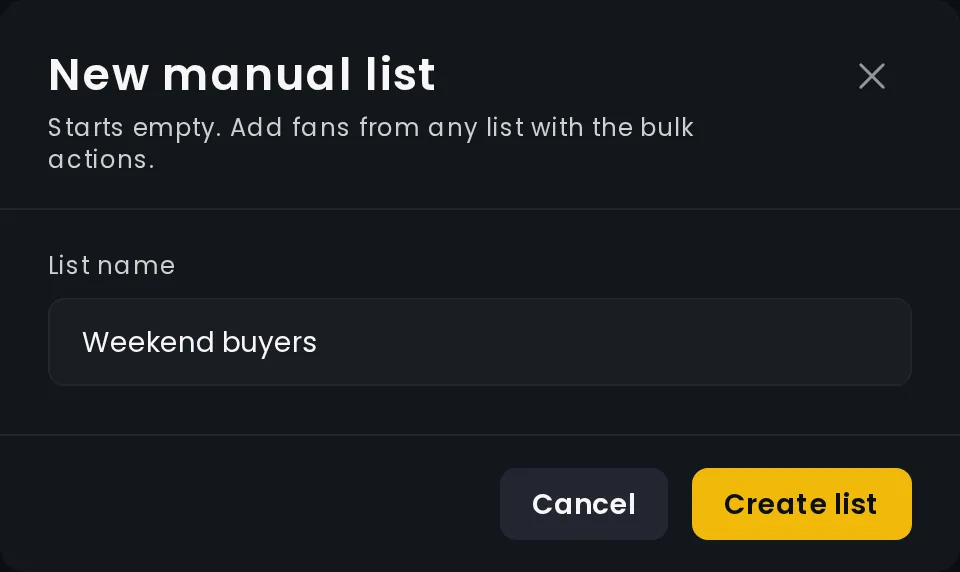
- In List name, type a name your team will recognize, up to 100 characters.
- Click Create list.The new list shows up in the table, empty.
Add fans to it#
- In the table, click the new list to open it.
- Click More.
- Click Add fans.A window opens with her fans. Search by name or handle to find more.
- Select each fan you want in the list, then click Add fans.VENUZ tells you how many went in.

How a manual list works#
VENUZ creates the list on OnlyFans too, with the same name. OnlyFans doesn’t take two lists with the same name for one creator.
Fans can also join it from a tracking link or a promotion auto-renew that uses it, and changes made to it on OnlyFans show up here. For a list that follows rules, use a Smart List.
If OnlyFans turns any down or doesn’t answer, the message says how many.
Common questions#
Take fans out of the list
Open the list, select them and click Remove from list. You can remove up to 50 fans at a time.
Put one fan in other lists
Next to each fan in a manual list, the Manage lists icon puts that fan in other lists or takes them out.
Message the fans in it
Message list, inside the list, opens a new mass message for it. It needs the View mass messages and Automate mass messages permissions.
New list is grayed out
Creating a list needs the Manage lists permission.
Rename the list
Open it and click More, then Edit list. Its fans stay as they are.
Where to go next
Couldn’t send that. Try again.
Still stuck?
Write to us and a person from the VENUZ team answers. Tell us the creator and what you were trying to do.